2FA that lives inside the profile.
TubeGhost has a full TOTP authenticator built into the browser. Store a token per Google account, generate the code inside the profile that owns it, and give your team access without ever passing a phone around.
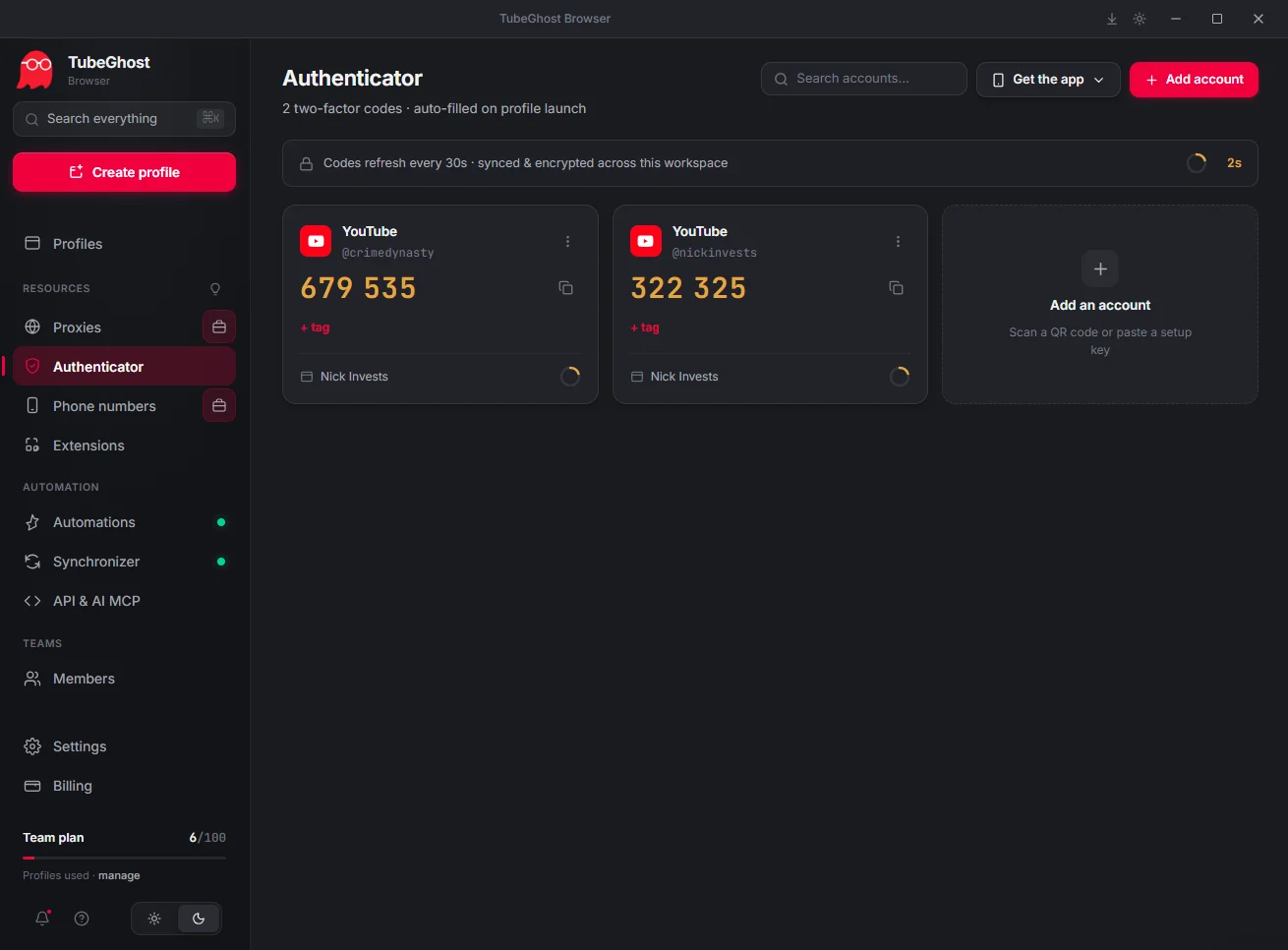
One authenticator for every channel.
Tokens live in your workspace and travel with the profile they belong to.
Add a token per account
Scan or drop the QR image Google shows you, or paste the setup key. The secret is stored in your workspace, not on a phone.
Link it to a profile
Assign each token to the profile that owns the channel, so the right code is always in the right browser.
Auto-filled on launch
Codes refresh every 30 seconds and are filled in when the profile opens, so there is no second device and no app-switching mid-login.
Shared across the workspace
Tokens are synced and encrypted for everyone on the workspace, so teammates with the right role read codes without a screenshot being passed around.
Why this matters
2FA is the last door between someone else and a channel you spent years building.
One phone is a single point of failure
If every channel's 2FA lives on one handset, losing it or wiping it locks you out of the whole network at once — usually while you're mid-upload.
Codes in the wrong browser get you flagged
Pulling a code on your personal phone and typing it into an isolated profile is exactly the cross-signal the isolation exists to prevent.
Handing a VA your phone doesn't scale
Once more than one person touches a channel, screenshotted codes and shared logins become the weakest part of the operation.
What you get
Everything below ships in the browser — there is no separate app to install.
How it works
From adding a token to logging in takes about a minute.
Open Authenticator
It's in the sidebar under Resources, next to Proxies and Phone numbers.
Add the account
Drop the QR code image or paste the key Google gives you during 2FA setup.
Assign a profile
Pick the profile that runs that channel so the token travels with it.
Launch and log in
The code is right there when Google asks for it, already counting down.
Questions
No. The token lives in your TubeGhost workspace and the code is generated in the browser. A phone is only needed if a service refuses authenticator-app 2FA and insists on SMS — that's what the phone numbers feature is for.
No. It's standard TOTP, the same thing Google Authenticator and Authy generate, so it works with any service that offers authenticator-app 2FA.
Re-run the 2FA setup on the account and scan the new QR code into TubeGhost, or paste the setup key if you still have it. Google will show you both options.
Only if you let them. Viewing, copying, managing tokens and revealing a seed are four separate permissions you grant per role, so a VA can log in without ever being able to export the secret.
Encrypted in your workspace, and it syncs to the machines that are signed in to it. Revealing a raw seed is gated behind its own permission.
Keep the recovery codes Google gives you when you enable 2FA, exactly as you would with any authenticator app. The seed-reveal permission also lets an owner export a token back out.
Stop juggling a phone to log in.
Every code, next to the profile that needs it — included with TubeGhost at no extra cost.
Included in every plan. No add-on, no per-token fee.